
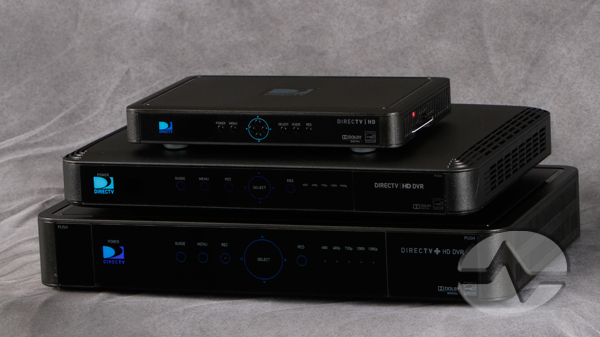
Who wouldn’t want a stack of these in the home? It may be just a wish for many residential customers, but for commercial customers, it’s pretty common. Stack several receivers in an equipment rack, and you have a decent bar setup. the only problem is controlling them. Many bar owners use aluminum foil over the receivers to make sure that the remote signal doesn’t get through, but there is a better way.
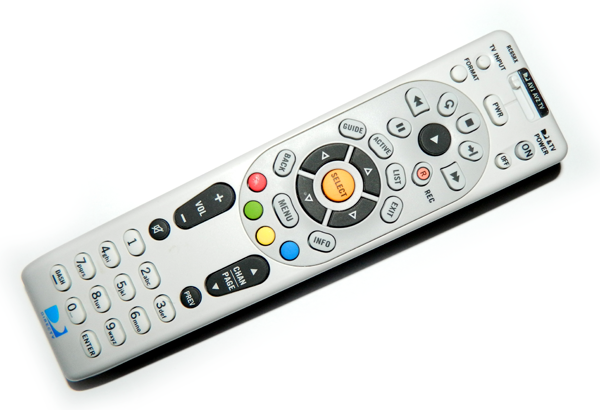
To control more than one receiver with a remote, you’ll need a white DIRECTV remote like the one you see above. If you need a spare, check this out — DIRECTV Universal IR (ONLY) Remote Compatible with Genie HR24 and All Preceding Receivers (RC65) from Solid Signal)
Note that the RC71 remote used with the HR44 Genie will not work with this tip, and some Genie DVRs and Genie clients will not give you this option. If you’re using any DIRECTV receiver from H21 through H25 or HR20 through HR24 though you should be fine.
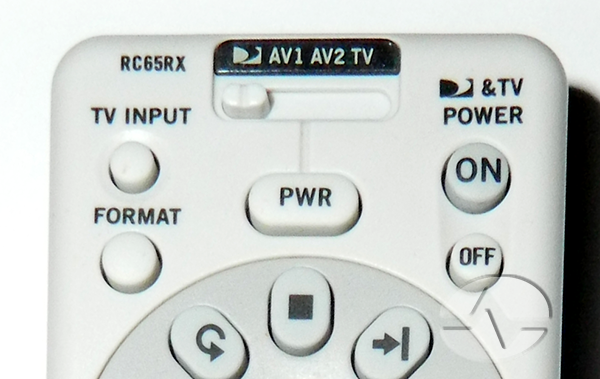
It’s also important to check the remote model number. It should be RC32 or higher.
We’re going to use the sliding switch at the top to control four receivers, and it’s easy!
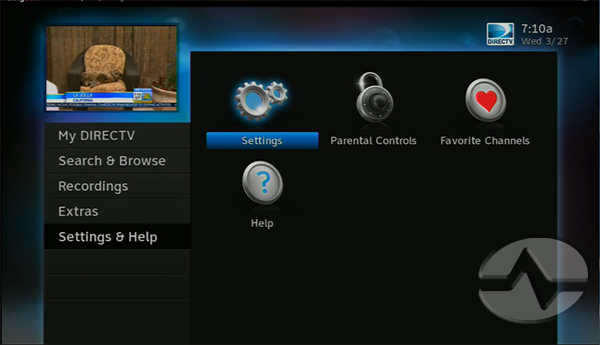
Thanks to Signal Labs member Carl6 for image captures.
Start by pressing the {MENU} button and using the down arrow to go to “Settings & Help.” Press {SELECT}.
Confirm that “Settings” is highlighted and press {SELECT}.
Use the down arrow to go to “Remote Control” and press {SELECT}.
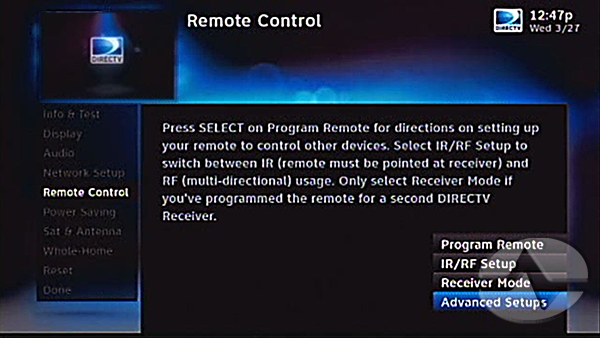
You should see a menu like this one. If you do not see the “Advanced Setups” menu, confirm your receiver model (should be H21-H25 or HR20-HR24) and make sure the remote is set to IR mode. (Need help resetting your remote to IR mode? Here’s a quick guide.)
Arrow down to “Advanced Setups” and press {SELECT}.
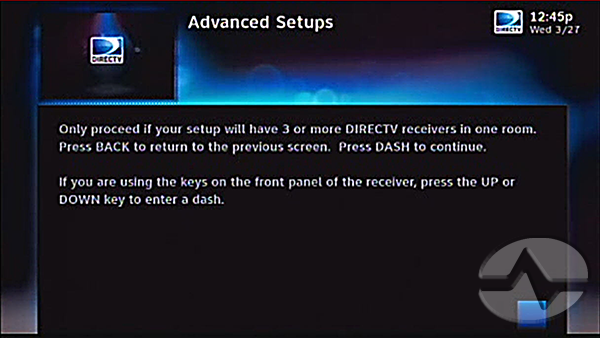
You will get a “nag” screen like this one to make sure you know what you’re doing. If you don’t do this process correctly, you may lose the use of the remote control and at that point you’ll need the front panel buttons to help you. Press the {-} (Dash) button on the remote to continue.
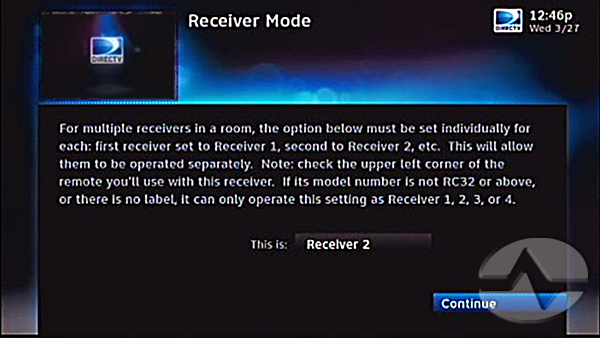
Here you have the option to change the receiver number. You can choose from 1 to 8. With the receiver number highlighted, press the {SELECT} button and use the arrows to select the one you want and press {SELECT} again.
You should leave one receiver set up as Receiver 1, and if you have a second, use Receiver 2. For a third, use Receiver 3.
When you are done use the right arrow button to highlight “Continue” and press {SELECT}.
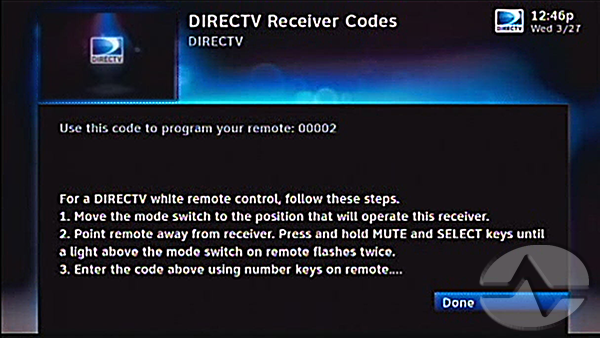
Now that you have set the receiver mode, you have to set the remote to put out codes that the receiver can use. You can leave Receiver 1 set up on the {D} position of that top switch, but the AV1, and AV2 positions can be programmed to control different receivers.
You’ll see a screen like this one above.
- Start by sliding the switch to the position you want to change. If you want to control Receiver 2, slide the switch to AV1. For Receiver 3, slide the switch to AV2.
- Press and hold {MUTE} and {SELECT} for at least two seconds. The light above the switch should blink twice.
- Enter the code shown on the screen. For Receiver 2 this will be 00002. For Receiver 3 it will be 00003.
- After you enter the last button the remote should blink twice again.
- You should now be able to press {SELECT} and that screen should go away.
If it didn’t work, try it again and if you need to get everything the way it was, use the front panel buttons to go back to the previous step and set the receiver mode back to Receiver 1.
You can actually control a total of 8 different receivers in the same rack by using three remotes. Set the fourth through sixth receivers to be Receiver 4 through Receiver 68 on the menu, then use codes 00004, 00005, and 00006 to set the second remote up. A third remote can use codes 00007 and 00008
If you have nine receivers you can use an RF remote and set that ninth receiver up to use RF.
Once you have all of this completed, you can throw away the aluminum foil you might have been using to cover the receivers. Just don’t forget, if you’re using multiple remotes, label them so you know which one you’re using!
You can also control up to 4 receivers or DVRs in RF mode using any of the white DirecTV RF enabled remotes. To do that, you first need to set the particular receiver and the position on the remote switch to work in IR, then switch to RF while still selecting that position on the slider switch. And, you can mix and match as desired, so some can be IR and some RF.
Setting up one remote to control four receivers is easy, and now… you know how to do it!


I have used this guide successfully back when I had two HR24 DVR’s in my equipment cabinet. Now, several years later, I find myself with an HR54 Genie and a C61K client in the same equipment cabinet. Currently, I am using two RC73 remotes set to RF mode to control the two devices. However, I would like to program my Harmony Ultimate remote to control the DVR’s, but the Harmony does not support RF commands. I have been unsuccessful to date in trying to figure out how to configure the C61K to use a different IR command set from the HR54. If you could suggest a solution, or provide a link that does the same, it would be greatly appreciated. Otherwise, when I use my Harmony, both the HR54 and the C61K respond simultaneously to the Harmony IR commands, which is undesirable. I have resorted to covering the IR windows on the C61K with a piece of black tape, and continue to use the RC73 in RF mode when using the C61K.
The C61K does not support multiple IR setups, but I believe the HR54 does. Press MENU then go to Settings, Remote Control. The Advanced setups menu should be there. Set the HR54 to code 2 and leave the C61K at code 1.
That was certainly worth a try, Stuart, but no joy. The HR54 does not have an Advanced button in the remote setup menu. As reluctant I am to call DirecTV support, I may give them a try next. I can’t be the only DTV customer with a Genie and a Client in the same room.
Jerry, I just found the workaround. You need to actually start up the C61K with a non-Genie remote. I tried it with an old-school white remote and I was able to get the Advanced Setups menu and assign the C61K as receiver 2. It worked fine. Just put down the RC73 and use an older remote. If you don’t want to buy one from Solid Signal, I bet you can find one at a thrift store.
I have a RC65R which I have been trying to use. So far, no success. I’ll try it again.
Well, I tried the RC65R remote, and I cannot get the Advanced menu in the remote control menu to appear. It seems like the remote must be in RF mode to get the Advanced menu, and the RC65R doesn’t seem to support RF. What is frustrating is that at some point in fiddling around with this in the last few days, I was able to get to the Advanced menu, and was presented the option of entering a different code, e.g. 00002, 00003, etc. Now I can’t figure out what I did to get to that point. Very frustrating.
I have been able to make this work over and over again. The key is you must turn the DIRECTV box off completely and turn it on using the IR remote. I actually recorded a video showing me doing it. The screen captures are all from the same Genie client and the only difference is whether I powered up with the Genie remote or with the IR remote. https://youtu.be/uU0sjlLlSvM
You must think I am a complete idiot by now. I turned off the C61K, and then turned it on using the RC65R (IR). The Remote Control menu does NOT show the Advanced setup option. Is it possible that the RC65R doesn’t work the same as the remote you used in your example?
I definitely do not think you’re an idiot. I don’t have an RC65R handy but I did all that stuff with an RC66 and tried it again with an RC34 to see if it was specific to that remote. It works every time. Maybe try double-rebooting the client to see if it’s just stuck or something?
You can also try resetting the remote and see if that improves matters: https://blog.solidsignal.com/tutorials/tip-reset-remote/
Well, resetting the C61K still produced no Advanced setup option. Strangely, the Advanced setup option appears in the Remote setup menu on the HR54. Of course, the HR54 cannot be controlled by any IR command set other than 00001, so I don’t know why it appears. At least now I remember where I saw the Advanced setup option. Still clueless as to why when following your YouTube instructions I can’t get it to work.
I have 3 DirecTV boxes and 3 Samsung Tv’s all on one wall. I used this article/info for my 3 DirecTV boxes and it worked great! But I cannot control TV functions when using this, any idea for help with that? When I press a TV button (volume/mute/input) it says “TV keys aren’t programmed” and when I try to program, I have to be on the mode controlling that box (D, AV1 or AV2), and I can’t ever get a successful programing done. Any ideas?
That’s a limitation of this method. You could turn on HDMI Control on the boxes and at least you can get power on/off, but that doesn’t help with volume. Perhaps split it to two remotes with each remote controlling one or two boxes, leaving the TV programmable.
Thanks for the quick reply, and thats for this info, I’m still looking for some type of Universal Remote that could handle all 6 devices (3boxes/3tvs) easily, any recommendations on that? But this will make it bearable and usable until that day comes! Thanks!
Any idea for a Universal Remote that could operate all 3 boxes and all 3 tv’s? In the meantime, this info will be a huge help! Thanks!